|  | | Accounts are free. Join #retro on irc.fxnet.org, identify with NickServ and type !req. |
| |
|
|  | | |
| | #retro on irc.fxnet.org
6697 ssl · 6667 plain
modern + vintage clients welcome |
| |
|
| | | |
| | 3 people in #retro
okawari, synmuffin, thelounge76
nobody on the FTP
last upload: Archived Windows 3.0 - 11 ISO B... by archiveorg, 35d ago |
| as of 21:42 EST ·  |
|
|
| | | |
| | | releases | 2,186 | | last 24h | +0 | | online | 1.7 TB | | library | 1.4 TB | | members | 1 | | updated | 2026-11-18 21:42 |
|
|
|
| | | |
| |
| | 
• CAUTION: Wear gloves to protect your hands from the corrosion--it's a skin irritant.
• If your device still works, power it down completely before starting.
|
|
|
| | | |
| | 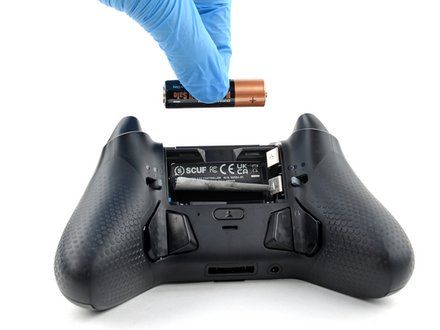
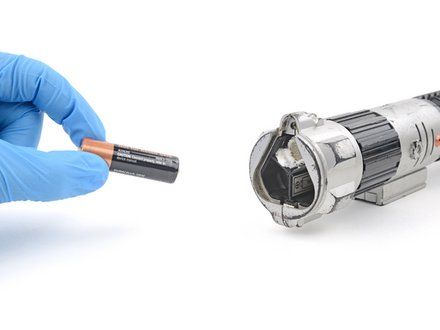
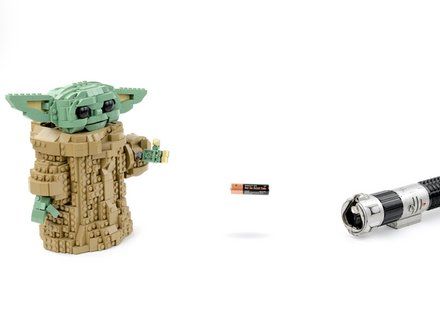
• Remove the batteries from your device.
• NOTE: If there's a lot of corrosion (https://guide-images.cdn.ifixit.com/igi/ZLVQrZaAl5pVRNqB.full), the batteries may be stuck in their recess. Don't try to force them out...unless you're a small, green, force-sensitive creature (https://media.tenor.com/_cbC4eXRFV4AAAAM/dance-baby-yoda.gif).
• If any batteries are stuck, follow the next step as normal to clean around them.
|
|
|
| | | |
| | 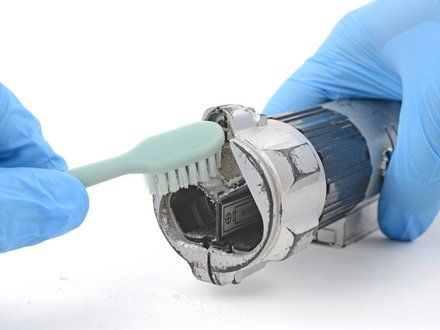
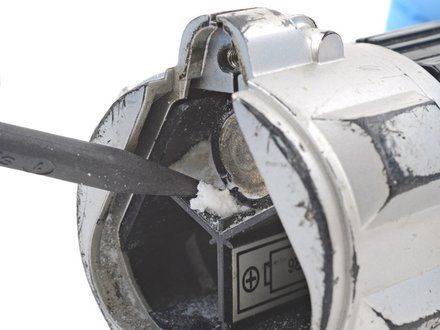
• Use a toothbrush or anti?static brush (https://www.ifixit.com/products/anti-static-brush) to gently remove any bigger chunks of corrosion from the battery terminals and battery recess.
• Use the point of a spudger to pick out any bits that are stuck.
• CAUTION: Pick around the batteries, and not at the batteries themselves.
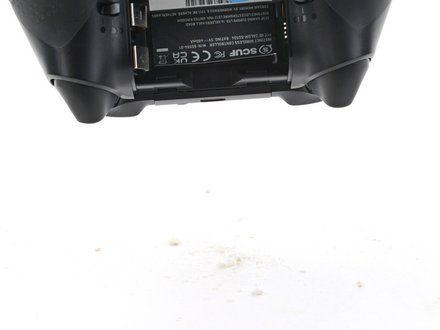
• Flip your device over and gently shake out the loose corrosion and debris.
• Dispose of the corrosion and debris in the trash.
|
|
|
| | | |
| | 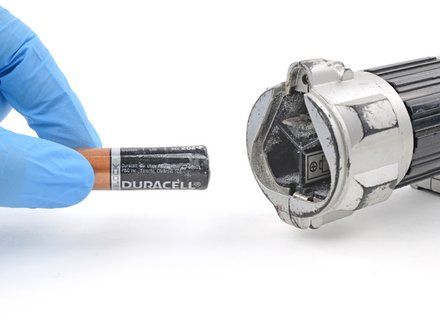
• You should now be able to remove any batteries that were previously stuck.
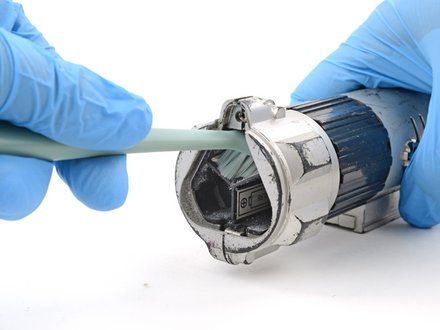
• Clean out the battery recess with a toothbrush.
|
|
|
| | | |
| | 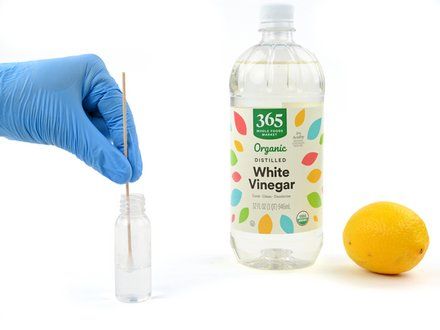
• NOTE: Alkaline batteries contain a base, which is what corrosion is made of. An acid like white vinegar or lemon juice will neutralize this base.
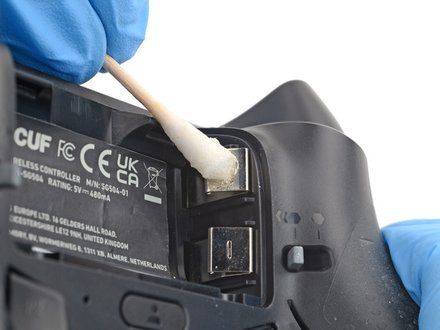
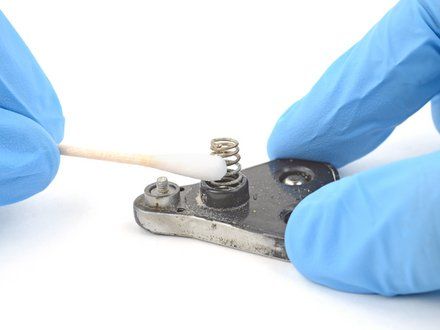
• Lightly dip a cotton swab in white vinegar or lemon juice.
• NOTE: Don't soak the cotton swab. Only use a small amount of liquid at a time.
• Gently rub the battery terminals with the cotton swab to dissolve and remove the corrosion.
• NOTE: The corrosion may fizz and bubble. Don't worry, this is normal.
• Continue this process until there's no corrosion on the terminals.
|
|
|
| | | |
| | 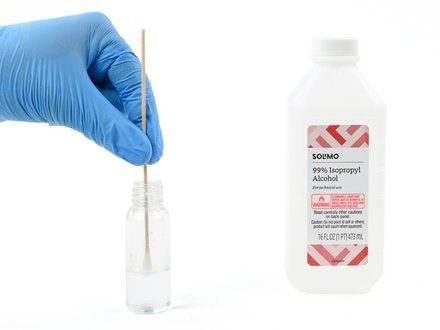
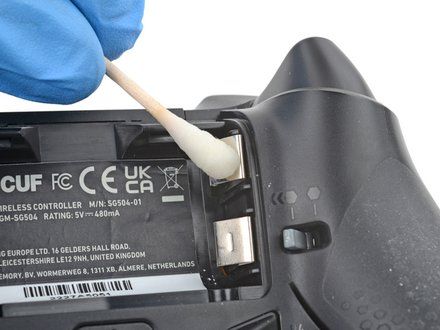
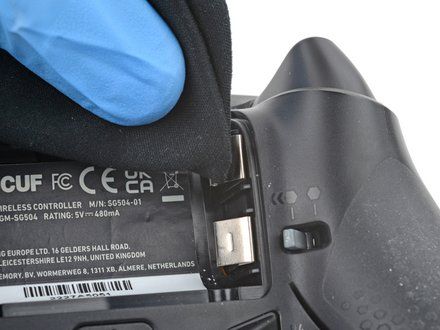
• NOTE: Isopropyl alcohol will remove any residue left from the previous step.
• Lightly dip a cotton swab in highly-concentrated isopropyl alcohol (over 90%).
• NOTE: Don't soak the cotton swab. Only use a small amount of liquid at a time.
• Gently rub the battery terminals with the cotton swap to remove any remaining residue from the previous step.
• Wipe the residue away with a microfiber (https://www.ifixit.com/products/microfiber-cleaning-cloths) or lint-free cloth.
• Repeat this process until the terminals are completely clean.
• Wait two minutes to allow any residual alcohol to evaporate.
|
|
|
| | | |
| | 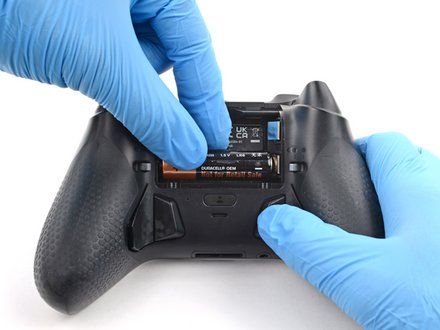
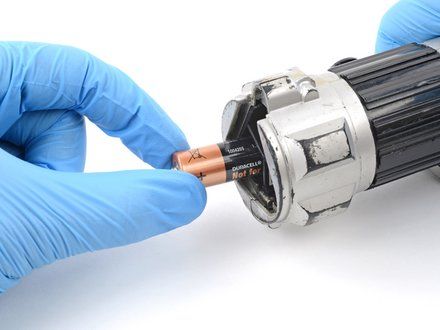

• Install new batteries and test your device.
• Take your corroded batteries or other e-waste to an R2 or e-Stewards certified recycler (https://www.ifixit.com/Wiki/E-Waste).
|
|
|
| | | |
| | Cleaning didn't go as planned? Ask our Answers community (https://www.ifixit.com/Answers) for help.
For other electronics skills, click here (/Topic/Electronics_Skills). |
|
|
| | | |
|

























